
Review critical details
Check faces, hands, product geometry, logos, and small text before using an AI-generated image in production.
Upload up to eight reference images, explain what should change and what should stay, then create a new version in one browser workflow.
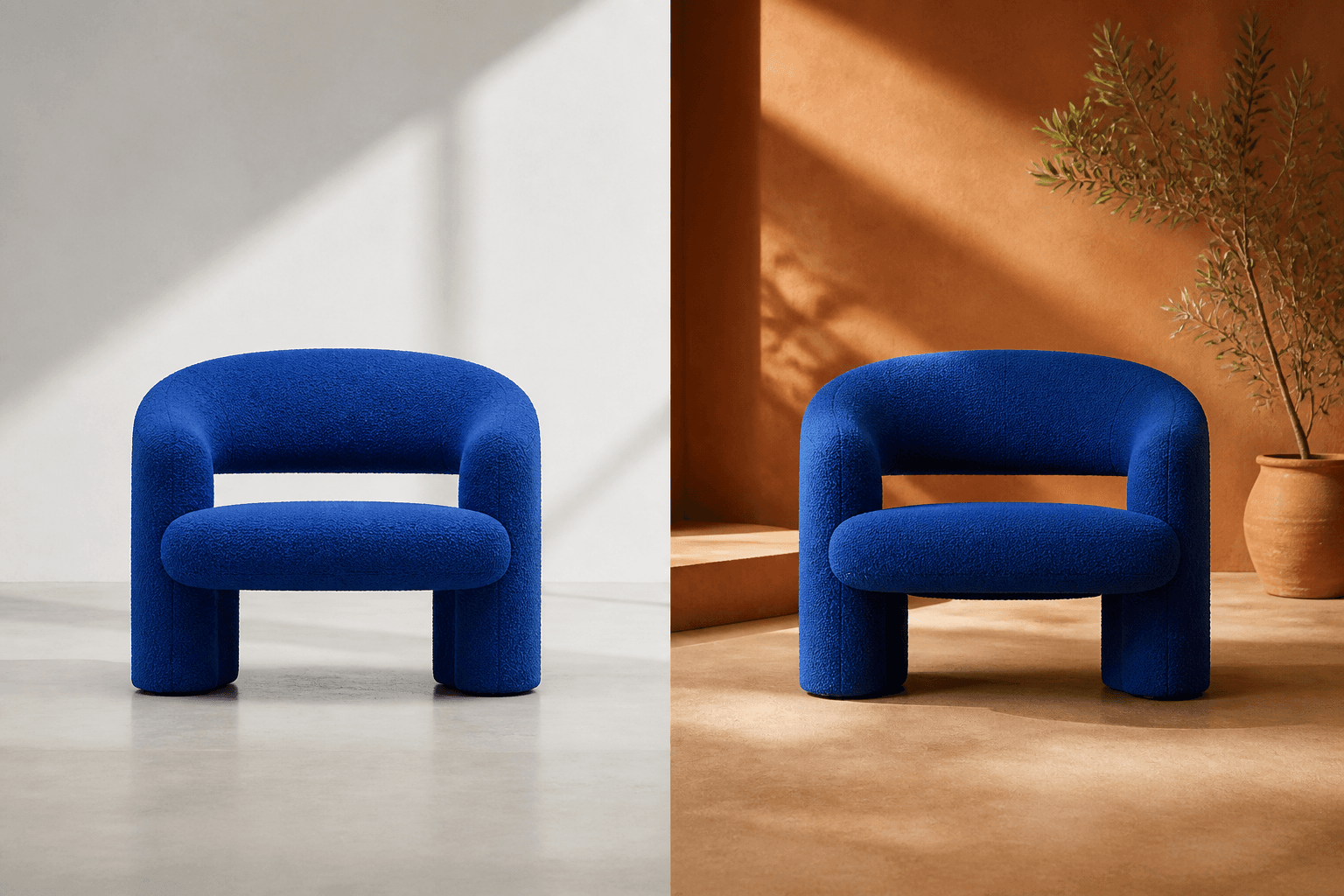
Transform any image with a prompt
Upload up to eight reference images, explain what should change and what should stay, then create a new version in one browser workflow.
Image-to-image generation works best when the source already contains something worth preserving and the prompt gives the AI a focused change to make.
Use one interface to upload source images, choose a specialized model, set output options, and track every generation.
Start from an existing visual instead of describing every detail from zero.
Reference-guided editing
Switch between models built for different editing styles, reference limits, quality settings, and formats.
Specialized image models
Choose the aspect ratio, resolution, quality, and output count supported by the active model.
Flexible output controls
See the required credits before generating. Failed submissions follow the platform's refund path.
Clear credit usage
Choose a clear source image. Add more references only when they each contribute a specific subject, style, or composition cue.
State the requested edit first, then list the details that should stay recognizable: subject, shape, camera angle, palette, or layout.
Inspect the result at full size and change one instruction at a time until the output fits your goal.
The best prompts separate what should change from what must remain stable.
Check faces, hands, product geometry, logos, and small text before using an AI-generated image in production.
Start with a concrete action such as replace the background, change the material, or restyle the scene.
Say which details to preserve: face, product shape, pose, framing, logo placement, or room geometry.
Start with included signup credits, see the cost before each generation, and add more only when you need them.
Save 40% with annual billing
$262.80Save 40%
3,000 credits
For occasional image edits and campaign variations
$394.80Save 40%
6,000 credits
For creators and teams producing image variations regularly
$838.80Save 40%
18,000 credits
For studios and high-volume image workflows
Or get started for free
Test the reference-first workflow before choosing a paid plan
Image-to-image AI creates a new visual from one or more reference images plus a text instruction. The references guide the subject, layout, style, or other details, while the prompt explains what should change.
The limit depends on the selected model. The default Flux 2 Pro image-to-image workflow accepts up to eight reference images; other models may allow fewer or more.
New accounts receive six signup credits in the current configuration. The required credits are shown before each generation, and availability can vary by model.
Reference images guide the output but do not guarantee pixel-perfect preservation. State important invariants in the prompt and verify identity, product, logo, and text details before publishing.
Commercial rights depend on the selected model, platform terms, and the rights attached to your source images. Review the current terms and make sure you have permission to use any people, brands, or assets in your references.
Can't find what you're looking for? Contact our support team
Upload a reference, explain the change, and explore a new visual direction without rebuilding the scene from scratch.